Daniel Schramm
Projects
Schliessanlage
Cat5 Cable Checker

Einschaltverzögerung
Belichtungstimer
Exposure Timer 2
Solder Station
Slave Flash
MP3 Player
MP3 Player Touch
Home Automisation
Can Bus Schield for Banana Pi
PCBs
Veroeffentlichungen
Contact
MP3 Player Touch for kids
Overview
My first daughter enjoyed her self-made MP3 player a lot. When our second daughter was born, she needed a player of her own, and it had to offer more features. Above all, it should be able to manage a large collection of radio plays.ST offers a great evaluation board, the STM32F746G Discovery, which includes a touch display, a USB host, a complete audio codec with speaker amplifier and equalizer, an on-board debugger and an Ethernet port. Only a small shield for the power supply and a battery-backed SRAM is needed.
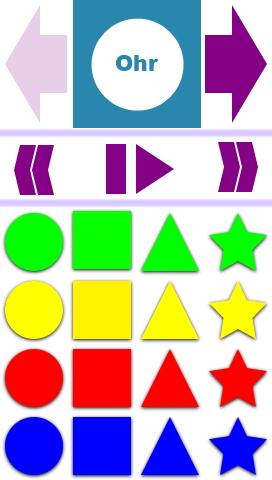
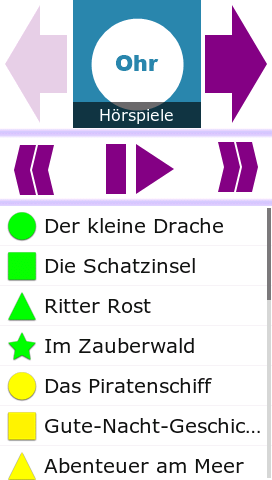
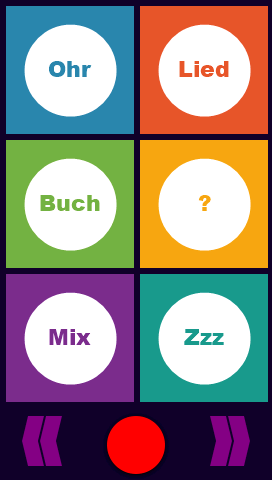
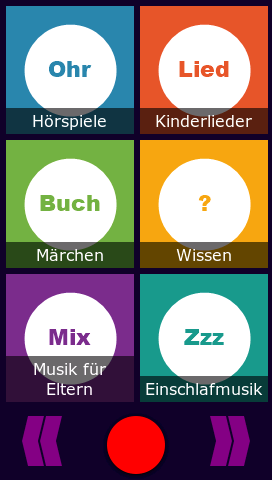
The user interface is button based, on a touchscreen, and works without any text. For children who can read, an optional list view shows the names of the folders and radio stations.
The nice GUI icons were provided by Jan Grochowski.
The screenshots below are taken with the PC simulator of the firmware.
Features
- Easy to use for children
- No reading skills needed.
- Graphical folder navigation.
- Pause/resume button.
- Button to skip to the next track.
- Button to go back to the previous track.
- Power button, also used to stop and to switch off.
- Full power off after an idle timeout, no standby consumption.
- Folders are assigned to the buttons in alphabetical order.
- Tracks of a folder are played in alphabetical order, no playlists needed.
- Playback stops at the end of a folder.
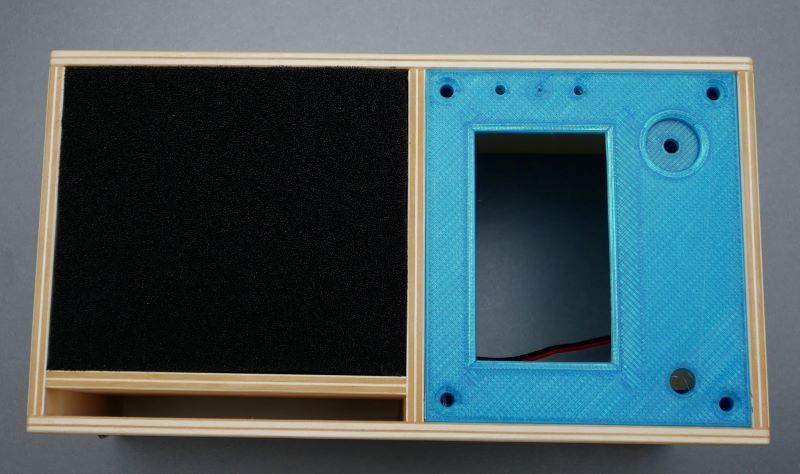
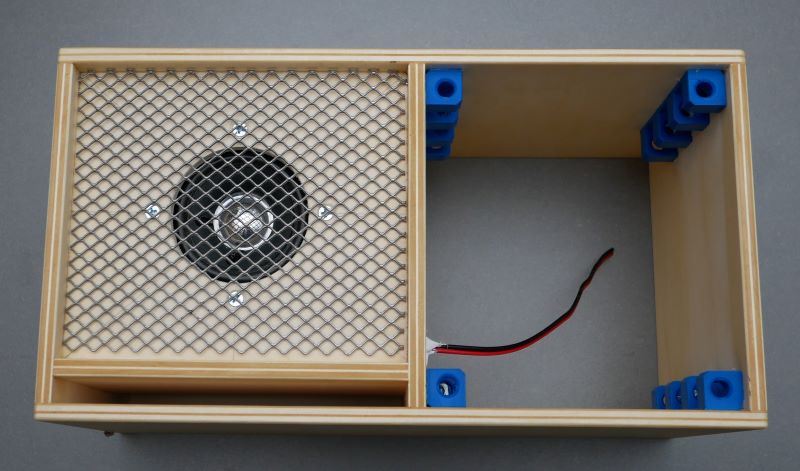
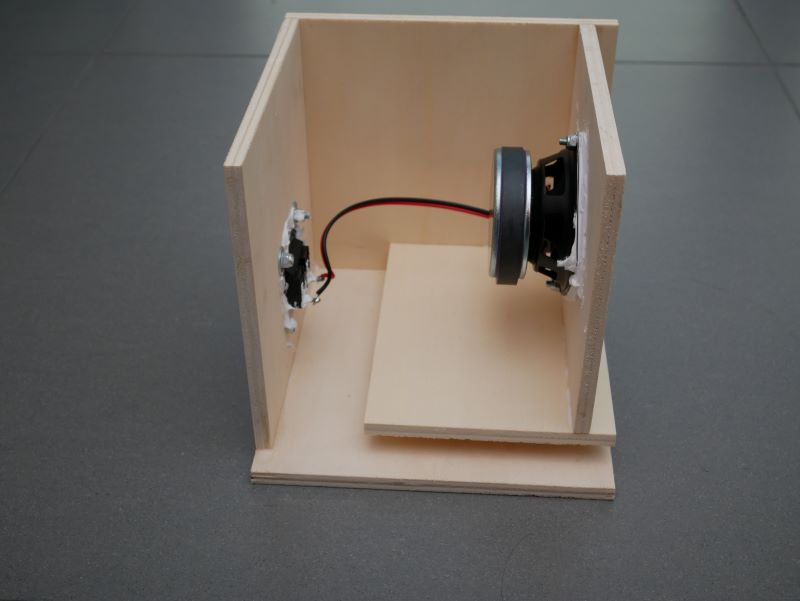
- Good sound for its size, better than most plastic devices
- Properly calculated bass reflex design.
- High-quality full-range driver. It increases the project cost, but it is worth it.
- Good low-frequency performance down to 60 Hz.
- Mono/stereo support.
- 5 V supply.
- Designed for children
- Automatic power off after playing a folder and an idle timeout.
- The playback position of every folder is stored permanently.
- When switching between folders, the last track is resumed.
- Optionally, the position within the track is remembered as well. This can be enabled in the parents menu.
- This behaves like a compact cassette and is especially useful for radio plays.
- Changes to the folder structure are detected, and the stored positions are reset.
- Parents menu to set the maximum volume and the graphical equalizer.
- New in versions 2.6 and 2.7
- List view with folder and station names, for children who can read (see below).
- Internet radio with station logos (see below).
- Up to 48 playback folders or radio stations per main folder in the list view.
- Separate power-off time for the radio: 30, 60, 90 or 120 minutes after the last touch or volume change.
- Faster loading of folders from the USB stick.
- Version 2.7: new USB stick figures by Jan Grochowski, shown while the player starts instead of a black screen.
USB stick
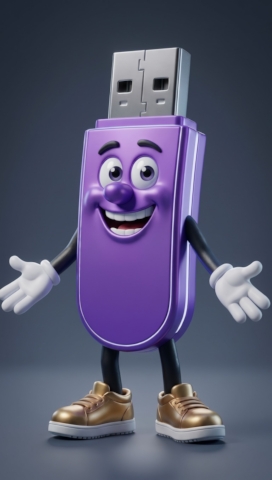
All music, radio plays and radio station folders are stored on a USB stick at the USB port of the board. Two figures show the children what is happening with the stick:- Happy stick (left): a USB stick was plugged in and is being read. As soon as the folders are loaded, the main screen with the folder buttons appears.
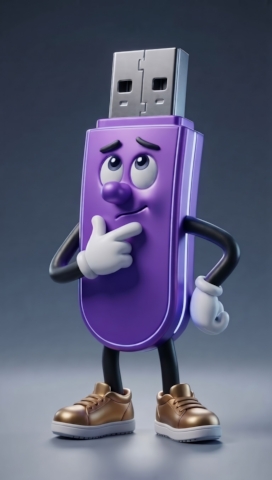
- Puzzled stick (right): there is no USB stick, or it was pulled out. Playback stops until a stick is plugged in again.


In 2026, Jan redesigned them. Firmware 2.7 uses the new figures, and the happy stick is already shown while the player starts, instead of a black screen:
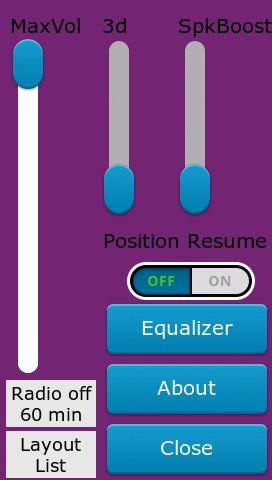
Parents menu
To open the parents menu, keep the volume knob pressed and press the power button. Besides the maximum volume, the 3D effect, the speaker boost, the position resume and the equalizer, the menu has two fields at the bottom left. Tap a field to change its value:- Radio off: power-off time while a radio station is playing (30, 60, 90 or 120 minutes after the last touch or volume change).
- Layout: Symbols (16 symbol buttons, the default) or List (list view with names).
List view
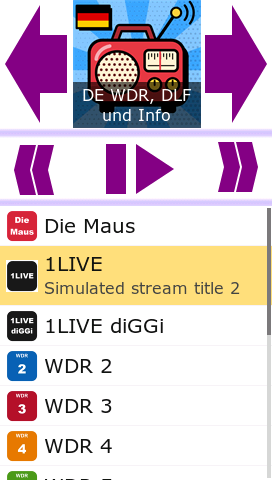
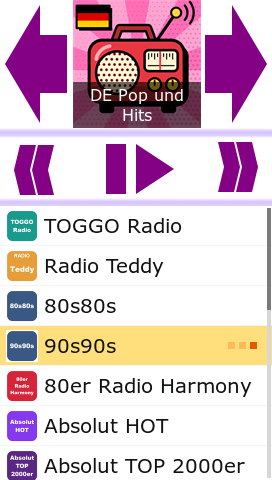
The list view is meant for children who have learned to read. The upper part of the screen stays the same, while the area of the 16 symbol buttons shows a list of the playback folders or radio stations of the selected main folder.- Activate it in the parents menu: Layout → List. To return to the symbol buttons, select Symbols again.
- Every row shows a small picture (the symbol of the matching button, or the station logo) and the name.
- Drag the list up or down to scroll. A narrow bar at the right edge shows the scroll position when not all rows fit on the screen.
- Tap a row to start it, just like the button with the same number.
- The playing row is highlighted and shows the current track or, for radio, the title currently on air.
- The cover of the main folder and the overview show the folder name.
- A main folder may contain up to 48 playback folders or stations. The symbol view shows the first 16 of them.
Internet radio
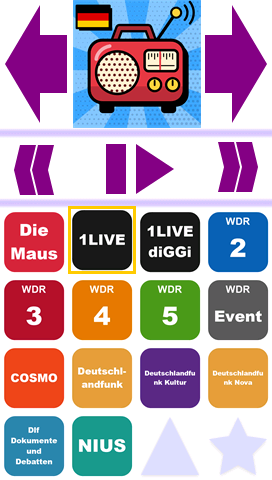
The player can play internet radio stations. It needs a network cable at the Ethernet port of the board; the network address is assigned automatically (DHCP). Radio stations are stored on the USB stick like playback folders: a main folder with one sub folder per station.- Tap a station to play it. Pause stops the stream, play starts it again.
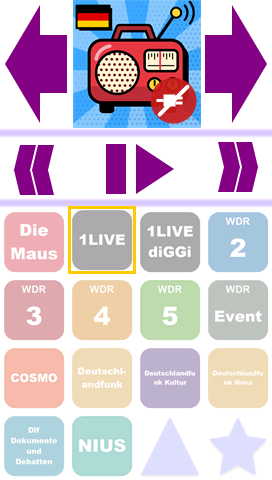
- While the player connects, small dots run on the station. A cross on the station logo shows that it could not be played, for example because the station sends no MP3 stream.
- Without network, the station logos are dimmed and the cover shows a plug symbol.
- In the list view, the title currently on air is shown below the station name.
- The radio switches off after the power-off time set in the parents menu (default 60 minutes). Every touch and every volume change restarts this time, so the player does not play the radio all night.
- Supported are MP3 streams via http:// and https://. Streams in AAC or HLS format cannot be played.
Creating radio stations
A radio main folder looks like this on the USB stick:
900_Radio/
    radio.bmp                    cover of the main folder, 128 x 128 pixel, 24 bit BMP
    01_Die_Maus/
        station.m3u              stream address of the station
        logo.bmp                 station logo, 64 x 64 pixel, 24 bit BMP (optional)
    02_Deutschlandfunk/
        station.m3u
        logo.bmp
- A main folder is a radio folder when its first sub folder contains a station file (.m3u or .pls) and no MP3 files.
- One sub folder per station, sorted by name. The leading number sets the order.
- The station file is a playlist with one entry. The name after the comma of #EXTINF is shown in the list view; without it, the folder name is used.
#EXTM3U
#EXTINF:-1,Deutschlandfunk
http://st01.sslstream.dlf.de/dlf/01/128/mp3/stream.mp3
- A .pls file (File1=, Title1=) works as well.
- The logo is logo.bmp, otherwise the first .bmp file of the station folder. Without a logo, the symbol of the button is shown.
- Up to 48 stations per main folder. More stations can be split into several main folders, for example by style.
- Most stations publish their stream addresses on their website. Use the MP3 stream; the address often contains "mp3". The directory radio-browser.info also lists stream addresses and their format.
Firmware update
The firmware file contains the program for the internal flash and the images for the external QSPI flash of the board. It is flashed with the free STM32CubeProgrammer and the external loader for the board (N25Q128A_STM32F746G-DISCO) via the USB connector of the on-board ST-LINK. Step-by-step instructions are included in the zip file. Switch the player on before flashing, because it switches itself off when idle. Settings and stored playback positions of older versions are converted automatically.Documentation
- 3D PDF
- Plywood parts
- 3D printed parts
- Firmware 2.7 (2026-11-13) including flash instructions
- Source code of firmware 2.7, including the PC simulator
- Radio station folders, Germany (DE)
- Radio station folders, Austria (AT)
- Firmware 2.6 (previous version, 2017 USB stick figures) including flash instructions
- Firmware 20191222 (old version) including flash instructions
- Schematic of the battery backup shield
- Electronics documentation including PCB layout (Eagle files and PDF)
Pictures